# Set Up Noah MCP in Cursor
> Configure the Noah MCP server in Cursor so you can explore the Business API in natural language, with example prompts to try.
## Overview
**Explore Noah's Business API through natural language.** With the Model Context Protocol (MCP) integration for [Cursor (The AI Code Editor)](https://cursor.com), you can enhance your developer journey by:
- **Asking questions in plain English** about Noah's API and getting instant, contextual responses
- **Exploring API capabilities** without switching between documentation and tools
- **Getting immediate answers** about business profiles, transactions, and payment methods
- **Learning through interaction** as you progress through Noah's developer guides
**Perfect companion for your developer journey.** Instead of constantly referring back to documentation or making manual API calls, simply ask Cursor's AI about Noah's functionality and get the answers you need to keep learning.
**Ready to enhance your development experience?** Let's get you set up in just a few minutes.
---
:::caution
**Important: Always Verify AI Outputs**
- **Double-Check All Results**: AI responses may contain errors or misinterpretations. Always validate API data, and business logic before acting on them.
- **Environment Safety**: Use Sandbox API keys for development and testing. Never use Production keys unless absolutely necessary.
:::
1. Set Up Noah MCP in Cursor
### Prerequisites
You'll need a Business API key from the [Noah Business Dashboard](../getting-started/business-dashboard.md) to get started. Both Production and Sandbox environments are supported.
:::warning
Make sure that your Node version is **20.18.1 or later**. Lower versions are not supported by the Noah MCP Cursor integration described below. When troubleshooting, start by checking your Node version.
:::
### Configure Noah MCP in Cursor
- If not installed, download and install Cursor, start it up, and go to **Settings** | **Cursor Settings**, click **Tools & Integrations**, and then
click **New MCP Server**.
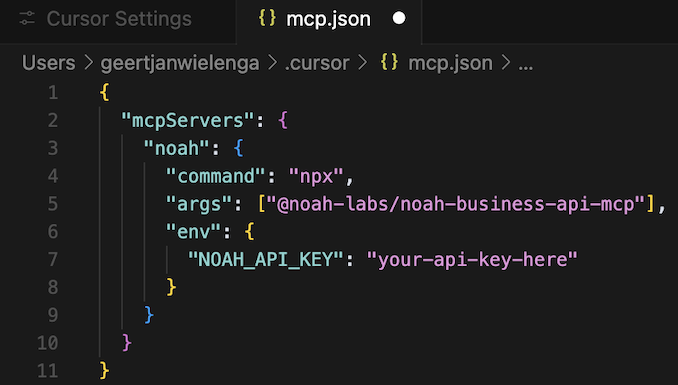
- Copy and paste the content below to define the Noah MCP Server:
```typescript
{
"mcpServers": {
"noah": {
"command": "npx", // or bunx
"args": ["@noah-labs/noah-business-api-mcp"],
"env": {
"NOAH_API_KEY": "your-api-key-here",
}
}
}
}
```
- Note the following settings for the above:
- Required:
- NOAH_API_KEY: API key created in the dashboard.
- Optional:
- NOAH_ENVIRONMENT: Possible values: sandbox, production (default: sandbox).
- NOAH_API_BASE_URL: Base path of the API, e.g., https://api.sandbox.noah.com/v1.
- Check that you see this in the editor area, with your API key replacing the placeholder API text shown below:
### Enable Noah MCP in Cursor
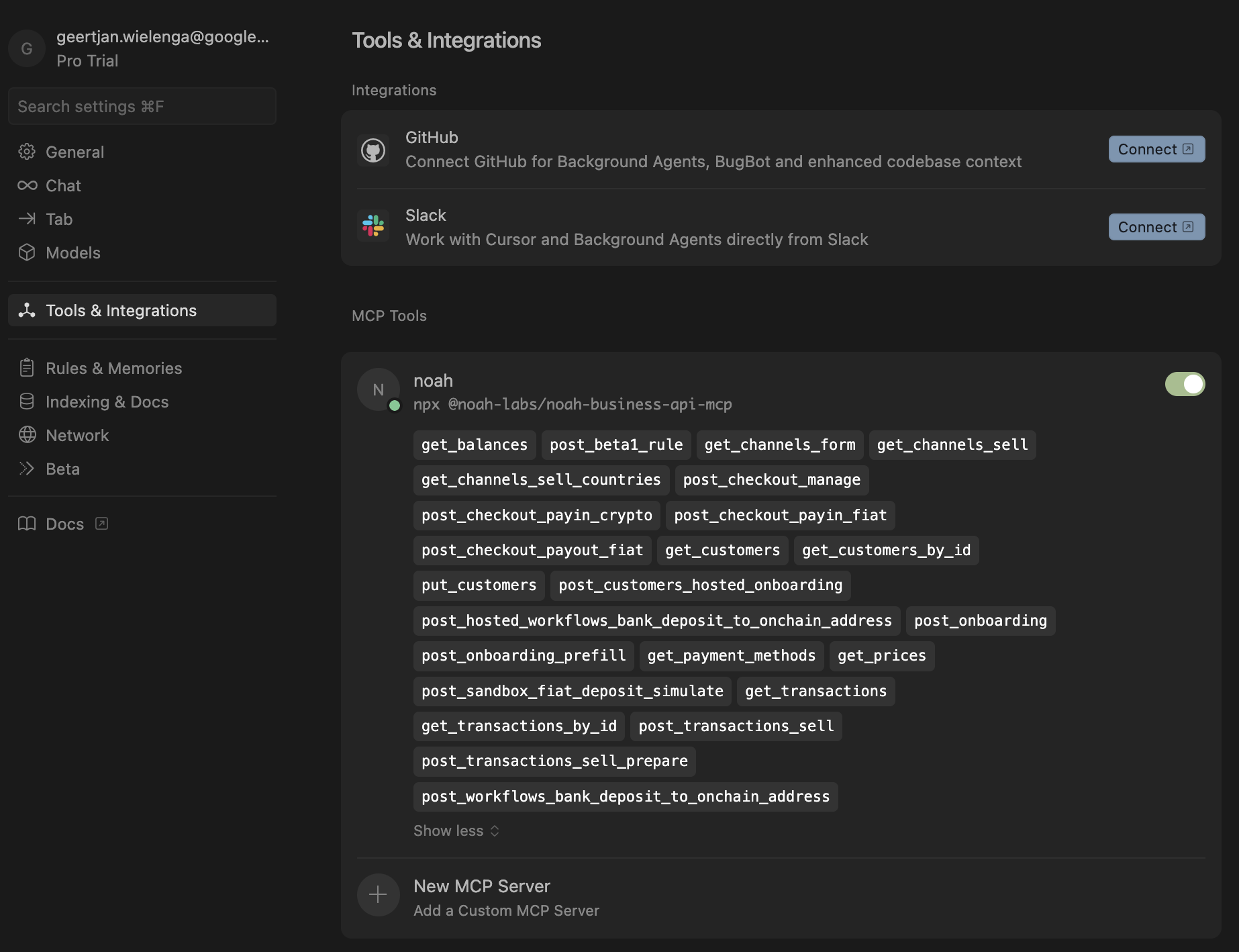
Switch the enable/disable switch to **on**, so that it is shown in green, together with the available Noah MCP Cursor tools, as shown below.
### Verify Your Setup
To confirm Noah MCP is working correctly:
1. **Restart Cursor** after enabling the MCP server
2. **Open a new chat** in Cursor
3. **Test the connection** by asking: `"List my available Noah tools"`
You should see Cursor acknowledge the Noah MCP tools are available. If you encounter issues, check that:
- Your API key is valid and has proper permissions
- Node.js version is 20.18.1 or later
- The MCP server shows as "Connected" in the settings
---
2. Use Cursor AI to Call the Noah Business API
Once your Noah MCP has been set up, open the Cursor chat and try these example prompts:
**Customer Management:**
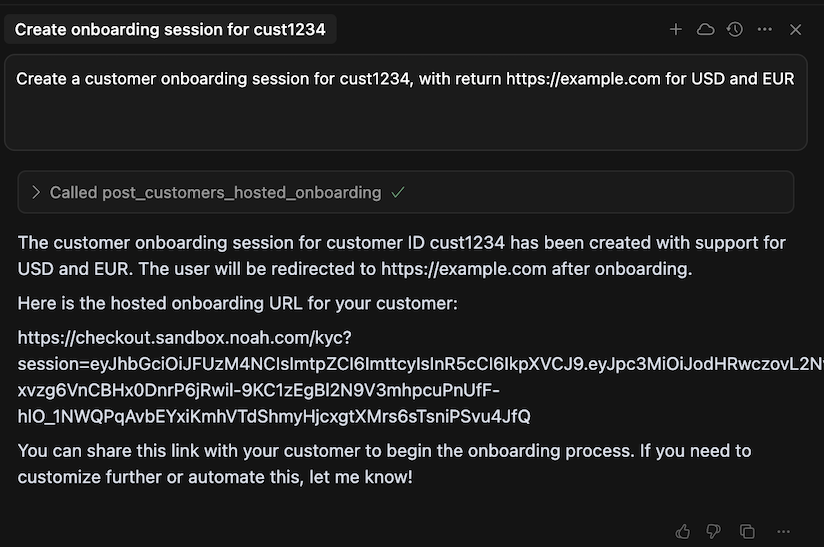
- `"Create a customer onboarding session for cust1234, with return URL https://example.com for USD and EUR"`
- `"Get payment details for customer cust1234"`
- `"Show me the transaction history for customer xyz789"`
**Payment Operations:**
- `"List all available ACH payout channels"`
- `"Create a new payment method for customer abc123"`
- `"Check the status of payment transaction tx_456"`
**API Exploration:**
- `"What Noah API endpoints are available?"`
- `"Show me how to create a business profile"`
- `"Generate a code example for processing a USD payment"`
Take note of the result returned by Cursor, as shown below.
---
:::tip
**Next Steps:**
- Explore the [Noah Business API documentation](../getting-started/business-dashboard.md) for advanced capabilities
- For questions or support, reach out at [business@noah.com](mailto:business@noah.com)
**Troubleshooting:**
- If tools aren't appearing, verify your API key has the correct permissions
- For connection issues, check Node.js version and restart Cursor
- Review the Cursor MCP logs in Settings → Developer Tools for detailed error messages
:::